
Image to Image AI
Upload one or more reference images, describe the result you want, and let Image to Image AI create a new version while preserving the details that matter. Edit photos, combine visual references, change styles or backgrounds, and generate up to 4K output with supported models.
Ready for Generating
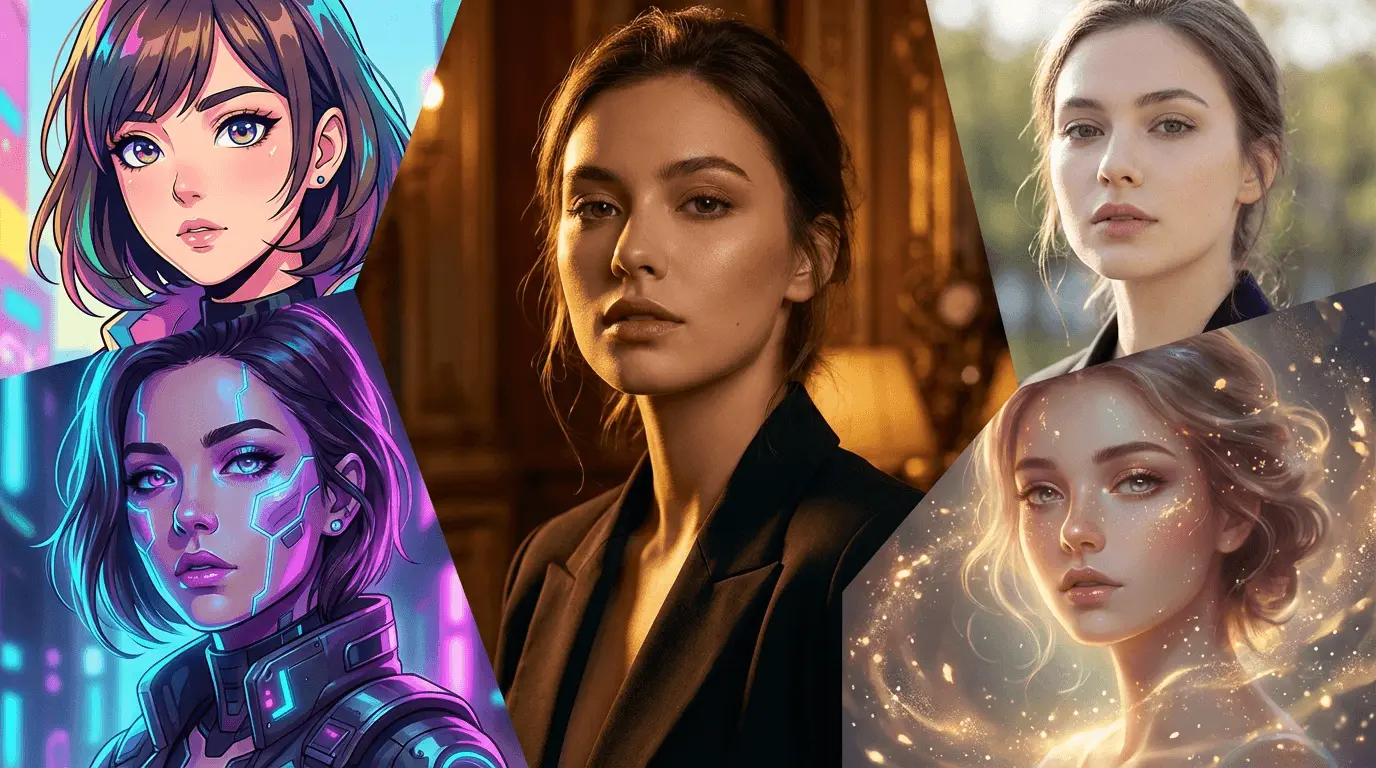

Image to Image AI Before and After Examples
Each Image to Image AI example shows how a source image can become a new result, with a copy-ready prompt to use as a starting point. Model labels are recommendations rather than claims about how the sample artwork was originally produced.
Turn a Portrait into Anime Art
Use Image to Image AI to change the visual style while keeping the subject recognizable and preserving the original portrait composition.
Example prompt
Transform this portrait into polished anime artwork with vibrant blue hair, soft cel shading, expressive eyes, and a colorful fantasy background. Preserve the person's facial structure, pose, framing, and overall identity.
Restore Old and Damaged Photos
Repair scratches, fading, and missing detail while keeping faces, clothing, and the historical character of the original photograph.
Example prompt
Restore this damaged vintage family photo. Remove scratches, tears, stains, and fading; recover natural contrast and realistic color; sharpen faces carefully; and preserve each person's identity, clothing, pose, and period details.
Remove an Unwanted Person
Remove a distracting subject and reconstruct the missing background so the beach, horizon, lighting, and texture remain consistent.
Example prompt
Remove the person walking on the left side of the beach. Reconstruct the sand, shoreline, and sunset naturally, matching the existing perspective, shadows, colors, and depth of field. Do not change the rest of the scene.
Colorize a Black-and-White Portrait
Add natural color to a monochrome portrait while preserving facial features, age, clothing texture, and photographic realism.
Example prompt
Colorize this black-and-white portrait with realistic skin tones, a muted navy wool coat, a natural gray cap, and subtle warm daylight. Preserve the person's facial features, age, expression, film grain, and original composition.
Create a Clean Product Background
Keep the product itself unchanged while replacing a distracting setting with a controlled commercial background.
Example prompt
Place the product on a clean warm-white studio surface with a soft neutral gradient background. Preserve the exact product shape, logo, materials, colors, and camera angle. Add a realistic contact shadow and soft diffused lighting.
Refine a Portrait Naturally
Improve portrait lighting and presentation without replacing the person or creating an overly processed result.
Example prompt
Refine this portrait with soft professional studio lighting, balanced skin tones, subtle blemish cleanup, clearer eyes, and a gently blurred neutral background. Preserve the person's identity, natural skin texture, expression, hairstyle, and face shape.
More Control Over Every Image Transformation
Image to Image AI gives you control over the model, references, framing, and output settings instead of limiting every edit to a single one-click effect.
Choose from Multiple AI Models
Compare models such as GPT-Image 2, Wan 2.7 Image, Nano Banana, Nano Banana 2, Nano Banana Pro, Seedream, and Flux. Each model offers a different balance of prompt following, detail, consistency, speed, and credit cost.
Work with Multiple Reference Images
Use more than one image when you need to combine a subject, product, style, pose, or environment. Supported models accept multiple references, with limits that vary by model.
Edit with Natural-Language Prompts
Describe the change in everyday language. Include what to add or remove, the desired style and lighting, and the details the model should preserve for more predictable results.
Select Resolution and Aspect Ratio
Create square, portrait, landscape, or wide images for different channels. Resolution and aspect-ratio options adapt to the selected model, with supported models offering output up to 4K.
Preserve the Details That Matter
Tell Image to Image AI to retain a person's identity, a product's shape, the original camera angle, the room layout, or another important visual element while changing the rest of the image.
Generate, Review, and Refine
Use the first result as a starting point. Adjust the prompt, switch models, change the output settings, or upload another reference to move the image closer to your intended result.
How to Use Image to Image AI
Use Image to Image AI to transform an existing image with a prompt in three straightforward steps.

Upload Your Reference Image
Upload the photo, artwork, sketch, or product image you want to transform. Add more reference images when the selected model supports them and the edit needs additional visual guidance.

Describe the Change and Choose a Model
Write a prompt that explains what should change and what should stay the same. Then choose the AI model, aspect ratio, resolution, and output count available for your task.

Generate, Review, and Download
Generate the new image and review the result. Download it when it matches your goal, or refine the prompt and settings to create another variation.
Creator Workflows for Image to Image AI
Six practical Image to Image AI workflows for using reference images, prompts, and model controls in everyday visual work.
Product photos often need the same item placed in several settings without changing its shape, color, or branding. Multiple references and a precise prompt make it easier to create studio, lifestyle, and seasonal variations from the original image.
E-commerce Seller, Product-image workflow
E-commerce Seller
Product-image workflow
One strong portrait can become several visual directions for different channels. A creator can keep the person recognizable while testing new outfits, backgrounds, lighting, and editorial styles without rebuilding every concept from the beginning.
Content Creator, Social-content workflow
Content Creator
Social-content workflow
Image-to-image generation is most useful during exploration: upload a rough composition, describe the intended art direction, review the result, and refine one instruction at a time until the visual is ready for the next design stage.
Graphic Designer, Concept-development workflow
Graphic Designer
Concept-development workflow
For an aged or damaged photograph, the key is to improve scratches, fading, and clarity while explicitly asking the model to preserve facial features, period details, and the original character of the image.
Photographer, Photo-restoration workflow
Photographer
Photo-restoration workflow
A single approved concept can be adapted into square, portrait, and landscape variations for different placements. Keeping the product and message consistent while changing the surrounding scene helps speed up creative exploration.
Marketing Team, Campaign-variation workflow
Marketing Team
Campaign-variation workflow
The first generation does not have to be the final one. Switching models, adding another reference, or clarifying what must stay unchanged can produce a more controlled result than repeatedly using the same broad prompt.
Independent Creator, Style-exploration workflow
Independent Creator
Style-exploration workflow
Image to Image AI Questions
Answers to common questions about editing existing images with AI prompts and reference images.
Create with Image to Image AI
Start with Image to Image AI: upload a reference image, describe your edit, and generate a new version with the model and settings you choose.